Welcome To "All-Top-Tricks"

All-Top-Tricks Here You Can Get Free Tutorials On Blogger Tips And Tricks, All Computer Tricks, Search Engine Optimization, Guide Line For Beginners, Blogger Top And Latest Widget , Facebook Tips And Tricks Etc..

Showing posts with label swf. Show all posts

Tuesday, November 12, 2013

How To Add Animated Flash Clock To Your Blogger Blog

Unknown | 4:42 PM | | | | | | | | Be the first to comment!
Animated Flash Clock To Your Blogger Blog

Hello! `How are you guys? here's the cool Clock.this tutorial will show you how to Add animated flash clock gadget your Blogger blog. A clock gives a beautiful look to a website. A clock is a necessity for a personal website, forum, blog etc.Isn�t it exciting when you get a highly quality flash Clock absolutely Free? you can add this flash animated clock your blog easily.i've tested this Flash Clock on internet explorer, mozzilla firefox & many other web browsers. it's very fast and fresh.You simply have to copy the code below each clock and add it to your blog.


How To Add Aniamted Flash Clock Widget To Blogger?

  • Choose a type of clock below
  • Provide Require widget title
  • Fill Height and Width of the Widget
  • Click on "Genetate" button
  • Finally click on "Add to Blogger" to add it to your blog.


Add Animated Flash Clock To Your Blogger blog


Now let's start adding it...

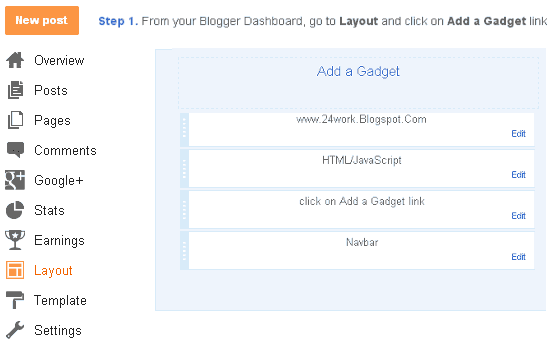
Step 1. Login to Your Blogger Account.Go to your Blogger Dashboard.Click on Layout tab from left pane and click on Add a Gadget link.
Blogger Tips And Tricks|Latest Tips For Bloggers

Step 2. After click on Add a Gadget link A pop-up box will open now
with many gadget list, Choose HTML/JavaScript from the gadget options by clicking the blue plus sign for that gadget.

Blogger Tips And Tricks|Latest Tips For Bloggers


Step 3. Select 'HTML/Javascript' and add the one of code given below.

Step 4. Now Click On Save 'JavaScript' You are done.


Happy blogging!


Hey EveryOne! I BILAL AHMED,From Pakistan,Author of this blog.. By Profession I'm a Web Designer,Blogger and SEO Optimizer. I'm not having an educational degree or something like that but, I'm the one who has done everything whatever i want to do.Thanks for visiting this blog.if you like it than please share this one with others.
Our site always trying to share something new and also useful Mobile Tips and Tricks, If you find and new latest updated working code than please comment below we will sure updated, Thanks for visit our blog, For more method an useful stuffs keep explore our blog, For support us like our Facebook page and share this article with your friends.

 We used Various sources to obtain data and information For this Website to make it more useful and better for our viewers.We asurw that the contents of this website are not based on personal knowledge of any other. If you have any question you can contact us or meet with us.Thanks


Wednesday, September 4, 2013

Add Flash Twitter Follow Me Buttons to Blogger Blogs / Websites

Unknown | 5:05 PM | | | | Be the first to comment!


Twitter is a social networking sites popular in the world of bloggers to promote their blogs. So here I am very cool Twitter Blogger widget, now it shows me how to add flash buttons to your twitter blogs and websites. These are the widgets based on Flash animations and have some nice effects.These buttons can help Twitter Flash Spice up your blogs, Webssites and can help you gain more followers on Twitter. These are designed and developed by twitterflash.net. I'm taking all the 15 types of one-click install to your blog.


How to Install Flash Animated Twitter Follow Me Widget To Blogger / Blog / Websites


Now let's start adding it...

Step 1. Login to Your Blogger Account.Go to your Blogger Dashboard.Click on Layout tab from left pane and click on Add a Gadget link.

Blogger Tips And Tricks|Latest Tips For Bloggers

Step 2. After click on Add a Gadget link A pop-up box will open now
with many gadget list, Choose HTML/JavaScript from the gadget options by clicking the blue plus sign for that gadget.

Blogger Tips And Tricks|Latest Tips For Bloggers


Step 3. Select 'HTML/Javascript' and add the one of code given below.

Step 4. Now Click On Save 'JavaScript' You are done. ..............


<object type="application/x-shockwave-flash" data="http://www.buzzbuttons.com/BUTTON3/twitbutton.swf" width="150" height="150"><param name="movie" value="http://www.buzzbuttons.com/BUTTON3/twitbutton.swf"></param><param name="allowscriptaccess" value="always"></param><param name="menu" value="false"></param><param name="wmode" value="transparent"></param><param name="flashvars" value="username=rohul786"></param><a href="http://24work.blogspot.com/" target="_blank" title="Blogger Tips and Tricks"><img src="https://bitly.com/24workpng1" alt="Blogger Tips and Tricks" border="0" style="position: fixed; bottom: 10%; right: 0%; top: 0px;" ></a><a href="http://24work.blogspot.com/" target="_blank" title="Latest Tips And Tricks"><img src="https://bitly.com/24workpng1" alt="Latest Tips And Tricks" border="0" style="position: fixed; bottom: 10%; right: 0%;" ></a><a href="http://24work.blogspot.com/" target="_blank" title="Blogger Tricks"><img src="https://bitly.com/24workpng1" alt="Blogger Tricks" border="0" style="position: fixed; bottom: 10%; left: 0%;" ></a><embed src="http://www.buzzbuttons.com/BUTTON3/twitbutton.swf" type="application/x-shockwave-flash" allowscriptaccess="always" width="150" height="150" menu="false" wmode="transparent" flashvars="username=rohul786"></embed></object>


And now click Save


How to Install Flash Twitter Follow Me Buttons on Your Blog?


1. Choose Any Flash Follow Me Button As You Want

2. Replace rohul786 With Your Twitter User Name

3. Customize Width And Height as You Need

4. Click on Generate Button and Finally Click on Add to Blogger Button to add this widget on your blog.


OR

5. Click on Get Code Button and Copy the code to use it.


Contact


  1. Are you think that is this post is useful for you ???? if yes or not,than kindly tell us about your opinion in comment.
  2. If you have any problem than tell us,we will give you a proper solution of your problem.


Ranking and DMCA

Like our Page

Copyright © . ALL TOP TRICKS. All Rights Reserved.
Blog Owner :- Gujjar_Awan | Proundly Designed by :- Admin